 Tadak
Tadak › How to update
To Use New Sounds — How to Update Tadak
Short answer
Tadak does not update itself. New sounds are bundled inside the new installer, so download the latest installer from the site and install it right over the version you're using and they unlock. There's no need to uninstall first.
First, check your current version
The version is shown at the bottom left of the Tadak window as Tadak v + number. If that number is lower than the latest version on the download button below, you need to update. If you can't see the window, double-click the tray icon at the bottom right of the taskbar to open it.
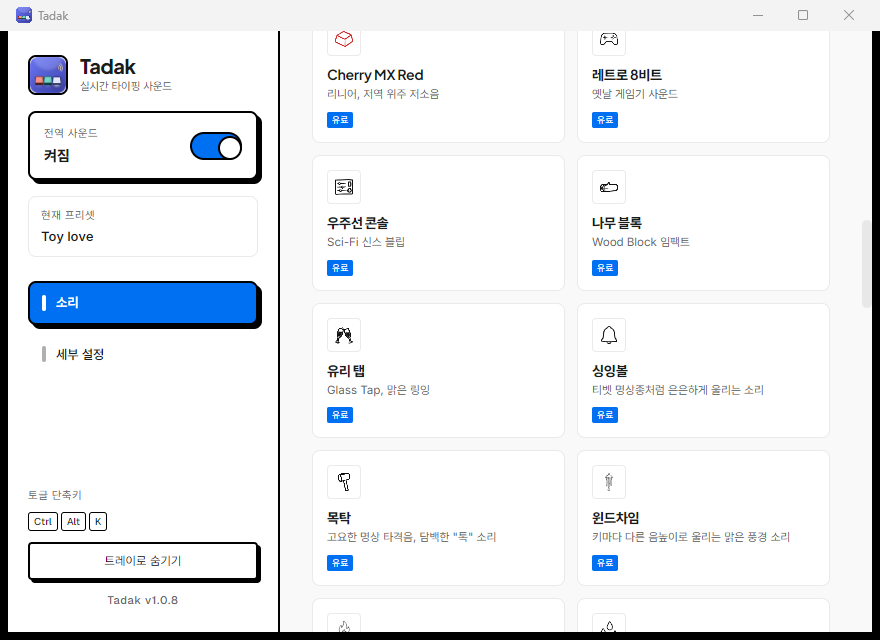 Current version
Sound list · new sounds are added here
This is the real Tadak window. The version number changes with every update.
Update steps
5 steps — quit the running Tadak, download the installer, and install over it
- 1 Fully quit the running Tadak The window's X button doesn't quit — it hides to the tray. Right-click the Tadak icon at the bottom right of the taskbar (if you can't see it, check under the ^ arrow) and choose Quit at the very bottom.
- 2 Download the latest installer from the site Use the button below, or press the Download button on the tadak.store home page. The file is the same even if you've already purchased.
- 3 Run the file — a warning window is normal If your browser says the file "isn't commonly downloaded", click ⋯ next to the file → Keep (in Edge) or Keep anyway. When "Windows protected your PC" appears while running it, click More info, then click the Run anyway button that appears. This notice appears because we don't have a code-signing certificate yet; it doesn't mean the file is damaged or malicious.
- 4 Setup wizard — keep the defaults to the end Click Next → Install → Finish. Don't change the install folder — leave it as first shown. That installs over the Tadak you're using now, and your shortcuts keep working.
- 5 Launch Tadak and check the new sounds Launch Tadak and scroll down the list on the Sounds tab. If the new sounds are there and the version number at the bottom left has gone up, you're done. If you've already paid, you can pick the new sounds right from the list at no extra charge.
The installer contains the whole new version of the app plus its sound files, so installing over the old one replaces the sounds too. When more sounds are added later, just download the latest installer and install it the same way.
After installing
Contact
Stuck while following along?
- Tell us the message on your screen and the version number at the bottom left of Tadak, and we'll check right away
- If you changed PCs, first see how to deactivate the old device in the FAQ
FAQ
Why doesn't it update automatically?
Tadak never checks for or downloads new versions on its own. When new sounds are added, this page and the download button on the site's home page are updated.
Do I need to uninstall my current version first?
No. Don't uninstall — just run the new installer and it installs over the existing app.
I use the zip version
Download the new zip, extract it first, then run Tadak.exe from the new folder instead of the old one. Running it directly from inside the zip window causes errors. Quit the running Tadak from the tray before switching.
How do I update the Mac beta?
The Mac version has no auto-update either. Get the latest dmg from the Mac install guide and copy it over the old app in your Applications folder the same way. During the beta you may need to turn the permissions back on after each update.